1. Crear una etiqueta nova
Open the Gmail app and tap the three-horizontal-line menu.
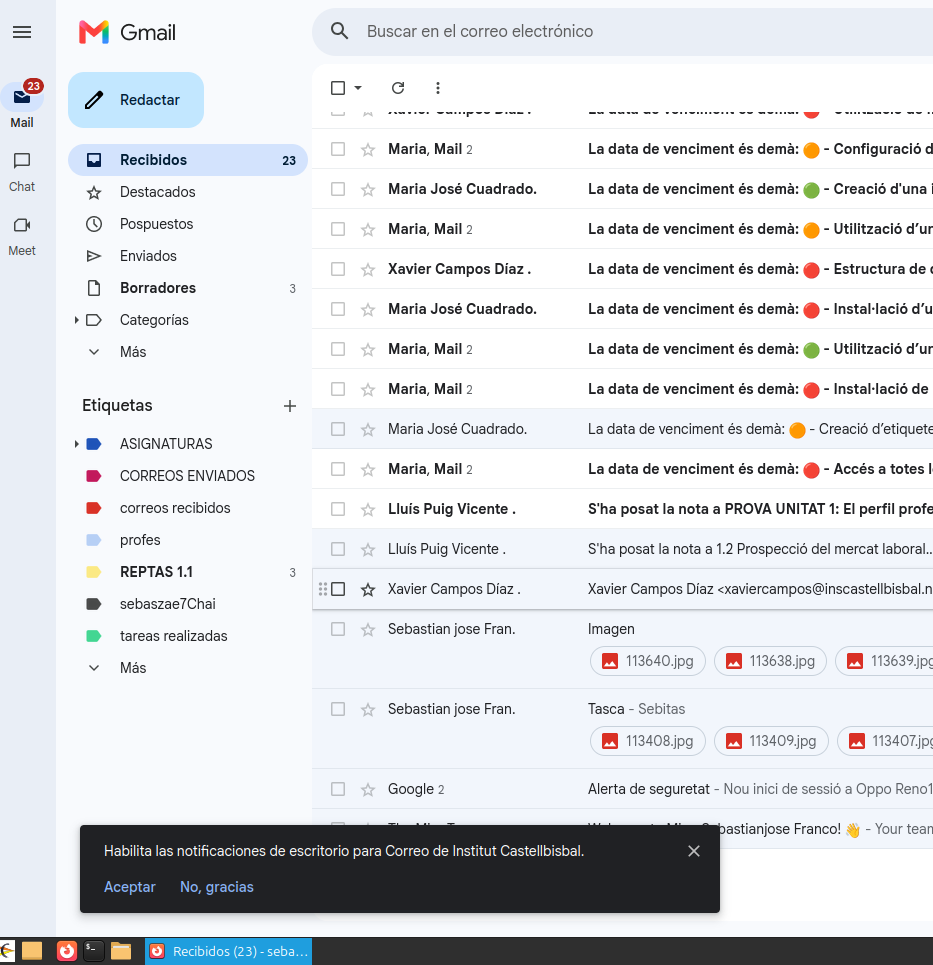
You click the plus sign and choose the label name.
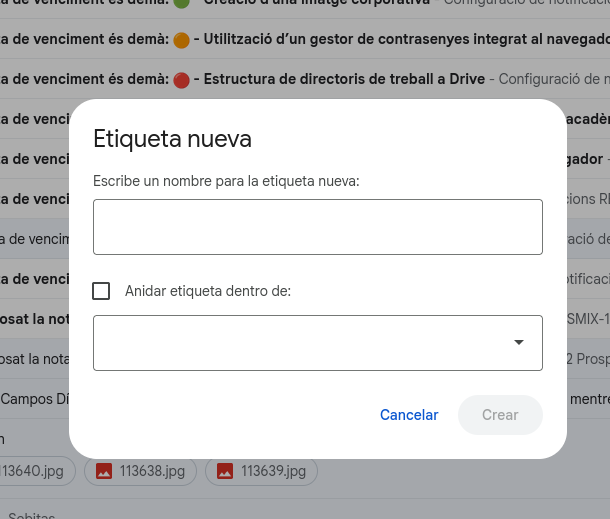
After choosing a name, click “Create.”
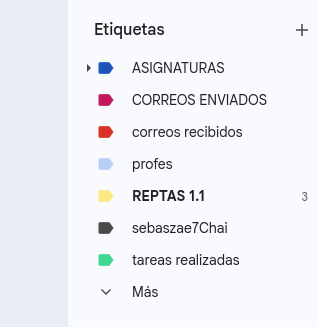
Puedes cambiar los colores para identificar las etiquetas. You can change the label colors by tapping the three dots and selecting “change color.”
Configuring labels in an email client (like Gmail or Outlook) serves to organize, automate, and quickly find information. Unlike traditional folders, a single email can have multiple labels applied to it at the same time.
Its primary benefits include:
- Categorization by Context or Priority: Groups emails by subject (Work, Invoices, School, Personal) or urgency (Action Required, Important, Waiting on Response).
- Instant Searching: Allows you to filter and view all messages tied to a specific topic with a single click in the side panel.
- Automation via Rules/Filters: Enables automatic labelling of incoming emails based on the sender, subject line, or specific keywords.
- Visual Clarity: Assigning distinct colors to different labels helps you identify message types and priorities at a quick glance in your inbox.
listening results